When the player launches a scenario, the scenario map will load and they will be presented with the Battle Interface. The Battle Interface is a collection of menus, dialogs, and popups that present the information the player will need to achieve victories.
Top Menu
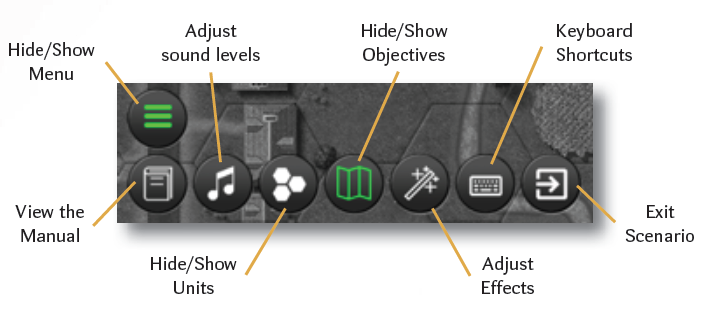
The Top Menu provides access to general game functions.
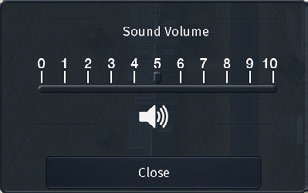
The player may adjust the global sound values for all sound effects in the game.
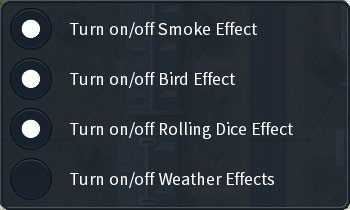
Valor and Victory implements a few minor in-game effects for each map. These include chimney smoke, flying birds, and weather effects such as rain or clouds. The player may elect to turn these effects off in the Effects Popup. The player may also turn off the rolling dice animations using this pop-up.
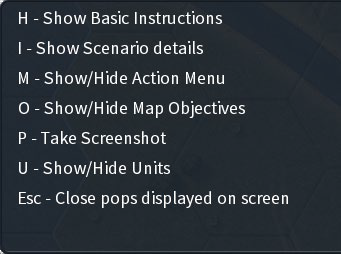
The player may display a list of keyboard shortcuts and hotkeys using the Main Menu.
Bottom Menu
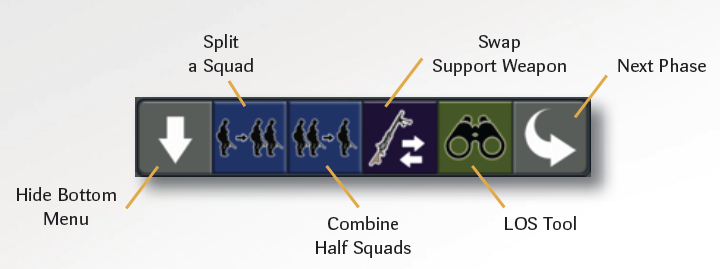
The Bottom Menu includes commonly used game operations, including actions that are limited to a particular phase. Because many actions are restricted to a phase, the Bottom Menu will change configuration during the course of each turn. Below is the Bottom Menu as it would appear during the Command Phase. The player may hover the mouse over any button in the Bottom Menu to see a small pop-up explaining its function.
Unit Selection Popup
The Unit Selection Popup allows players to interact with their units in a particular hex. This allows the player to determine which units and/or weapons are involved in a particular action. For example, a player may decide that they only want 2 of 4 squads in a hex to attack in a fire phase.
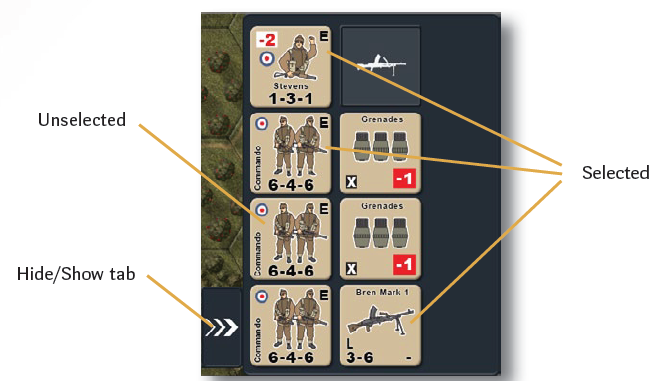
The Unit Selection Popup is useful in any action that involves squads. This includes:
★ Splitting squads
★ Merging half squads
★ Transferring support weapons
★ Moving and advancing units
★ Loading and unloading units
★ Attacking the enemy
★ Close combat
The Unit Selection Popup is only available for friendly units. To display enemy units, use the Hex Contents Popup. Unit Selection Popup and Stacking Limits Valor and Victory limits the contents of a hex to:
★ 4 infantry squads and/or leaders
★ 2 infantry squads and/or leaders AND 1 vehicle or gun
★ 2 vehicles or guns
Infantry may not be combined with vehicles or guns when moving or attacking (Exception: Passengers), so they are placed in their own tab in the Unit Selection Popup. Vehicles and guns also move and fire on their own. The result of this is that the Unit Selection Popup will often display two “tabs”. Only one tab is active at any one time
and represents the currently selected unit or stack. For example, a hex containing a gun and an infantry squad, and a leader would be presented in the Unit Selection Popup as:
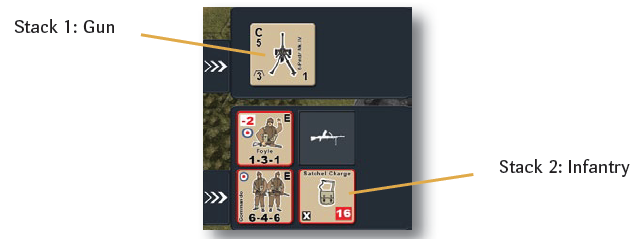
Note that the infantry stack is currently selected.
Unit Selection Popup and Passengers
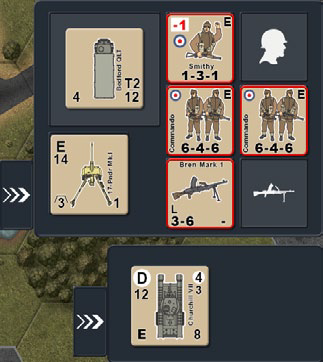
Transport vehicles are the exception to the rule that vehicles and guns or infantry do not move or fire together. When a transport is carrying passengers, they are displayed with the transport in the Unit Selection Popup.
Hex Contents Popup
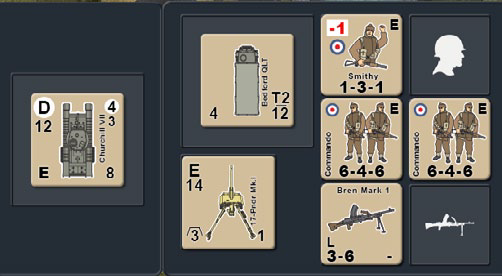
The player may quickly display the units in any hex by using the Hex Contents Popup. The pop-up is displayed by placing the mouse over any occupied hex and clicking the right mouse button. The Hex Contents Popup will display all the units in the hex, organized by stacks.
Hex Modifier Popup
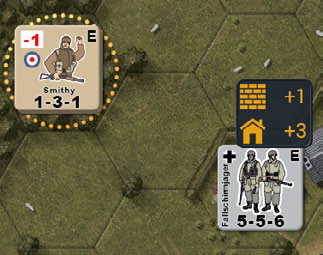
During the combat phases, the player may determine the modifiers that will be applied by hovering the mouse over the target hex. The Hex Modifier Popup will display all
the modifiers that will apply to any attack from the currently selected units. 12 The example above shows that the defending German half squad would benefit from a +1 from the hedge wall and +3 from the stone building if it were to be attacked by the British stack.
Target Selection Popup
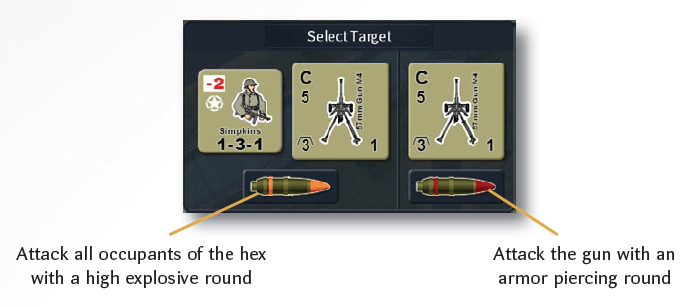
There may be times when the player attacks a hex that contains multiple viable targets. When that happens, the Target Selection Popup will be displayed, and the player may then select which target they wish to attack. In this case, the target hex contains a squad, a leader, and an antitank gun. The player has the option of attacking all the occupants of the hex using HE or attacking the gun using an armor-piercing round. The player clicks the appropriate shell under the images to select the target.
Anti-Personnel Combat Table
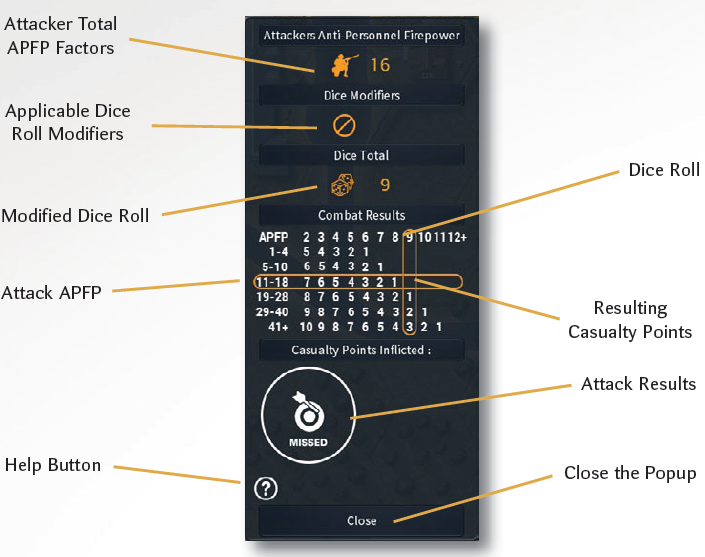
The Anti-Personnel Combat Table is displayed whenever the player or the AI attacks infantry or soft targets like a gun or truck.
Armor Elimination Table
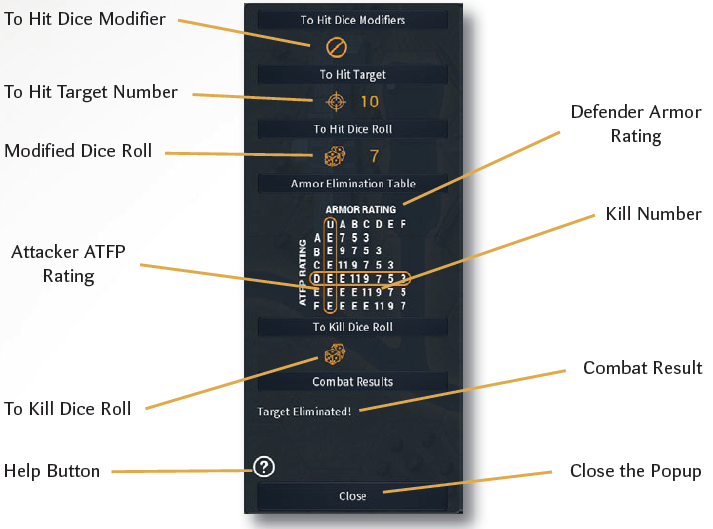
When the player attacks armored units, such as a gun or an AFV (tank, armored car, halftrack), the Armor Elimination Table will be displayed. The Armor Elimination Table displays all the information related to the attack.
Close Assault Table
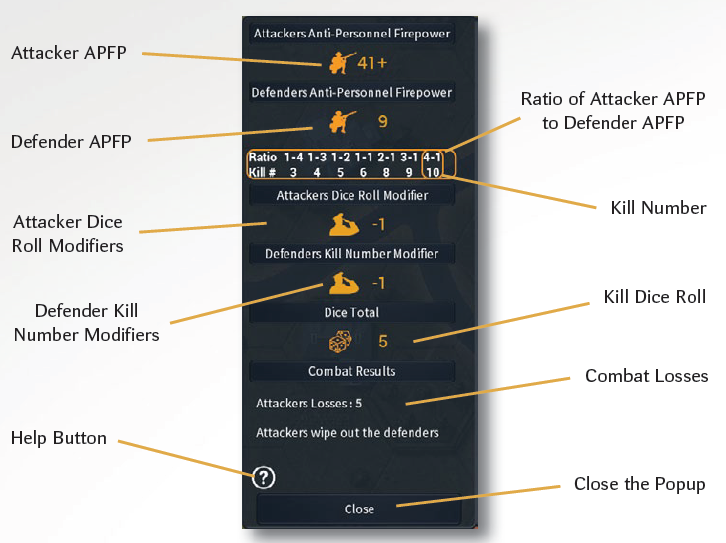
The Close Assault Table is displayed when close assault attacks are resolved.
On Map Visual Aids
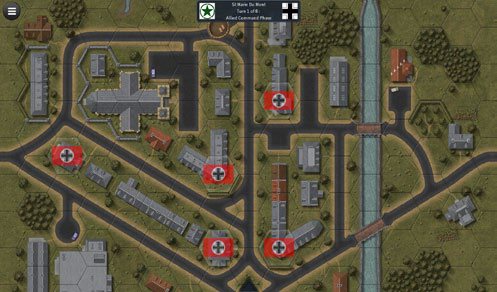
Some scenarios require the player to capture objectives by moving units to specific hexes. These objectives are shown on the map using the flag representing the nationality of the players’ forces.
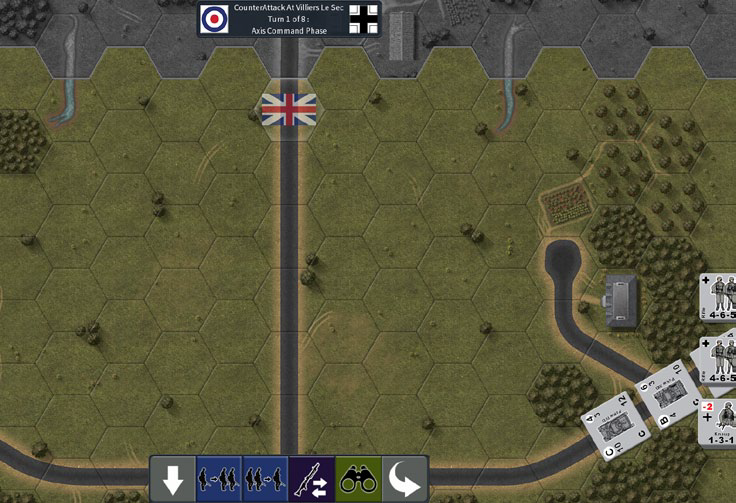
Other scenarios require the player to exit units from the map by moving them to hexes on the map edge. The exit hexes are also represented on the
map by a flag.
Combat Result Icons
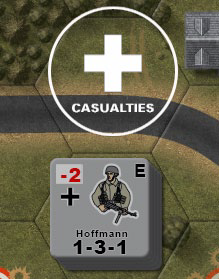
When combat occurs, the game will display icons on the map to highlight the result for the player. These icons may signify:
★An enemy unit has been pinned
★An enemy unit has taken casualties
★A friendly or enemy unit has rallied
★An enemy vehicle has been immobilized
★An enemy unit or vehicle has been eliminated
★★ The attack has missed altogether